
Field Service Management
My Mobile Workers Integration
Zynk's My Mobile Workers integration connects the field service app to your accounting or CRM system. Invoices raised for completed jobs post to Sage, Xero or QuickBooks, while customers, items and categories flow out to the app. Invoice numbers and job statuses are written back, so office staff and engineers in the field work from the same records.
Capabilities may differ depending on the product.
Benefits
Why businesses connect My Mobile Workers
Completed jobs invoiced sooner
When a job is finished and invoiced in My Mobile Workers, Zynk exports the invoice to your accounting system. Credit control can start chasing payment straight away rather than waiting for someone to type up job sheets.
Current customer details in the field
Customer records import from Sage, Xero or your CRM, so field staff arrive with the right address and contact details and the office no longer maintains a second customer list by hand.
Items and categories aligned
Parts and services from your stock or price list import into My Mobile Workers as items, grouped into matching categories, so engineers record materials against codes your accounts already recognise.
Traceability from job to ledger
Once an invoice or sales order exists in your accounts, its number and the job's new status are written back to My Mobile Workers. Anyone looking at a job can see where it stands in finance.
Jobs, routes and users for reporting
Jobs, routes and mobile users export as structured data, ready to load into a database or reporting tool when you want to analyse workload, travel and engineer activity across the business.
Capabilities
What you can do with My Mobile Workers
Every task the Zynk My Mobile Workers connector can run, grouped by the direction data moves.
Import into My Mobile Workers
Data Zynk writes into My Mobile Workers
3 tasks
- Categories → into My Mobile Workers
- Customers → into My Mobile Workers
- Items → into My Mobile Workers
Export out of My Mobile Workers
Data Zynk reads out of My Mobile Workers
6 tasks
- Categories → out of My Mobile Workers
- Invoices → out of My Mobile Workers
- Items → out of My Mobile Workers
- Jobs → out of My Mobile Workers
- Mobile users → out of My Mobile Workers
- Routes → out of My Mobile Workers
Actions in My Mobile Workers
Tasks Zynk can automate in My Mobile Workers
2 tasks
- Update job Invoice/PO number → in My Mobile Workers
- Update job status → in My Mobile Workers
Need something that isn't listed?
Most My Mobile Workers projects include at least one custom step. Our team builds it for you.
The problem
Why integrate My Mobile Workers?
Field teams finish the work, but the paperwork still has to reach the office. Without integration, completed jobs wait to be keyed into the accounts, customer changes in Sage never reach the app and nobody in the field can tell whether a job has been invoiced. Cash flow slows and engineers ring the office for answers.
Without integration
- Job invoices retyped into the accounts at the end of the week
- New customers set up in Sage and then again in the field app
- Engineers recording parts that don't match stock codes in the ledger
- No way to tell from a job whether it has been invoiced yet
With Zynk
- Invoices from completed jobs post to your accounting system automatically
- Customers import into My Mobile Workers from the system that owns them
- Items and categories import from your stock or price list
- Invoice numbers and job statuses update in My Mobile Workers
How it works
How the My Mobile Workers integration works
Step 1: Connect both platforms
Zynk connects to My Mobile Workers through its API and to your accounting or CRM system. For write-back, custom job statuses are created in My Mobile Workers so invoiced and sent jobs can be flagged.
Step 2: Map customers, items and tax
Match customers to account codes, items to stock or service codes and invoice lines to the nominal and VAT codes your accountant uses, so every posting lands where finance expects it.
Step 3: Agree the job lifecycle
Decide which jobs trigger an invoice export and which events in finance, such as an invoice being posted or an order despatched, should update the job status in the app.
Step 4: Automate and monitor
Workflows run on a schedule through the working day. Records that fail, such as an invoice for a customer missing from the ledger, are reported so the office can put them right quickly.
Integrations
What can you connect to My Mobile Workers?




Example use cases for My Mobile Workers integration

My Mobile Workers and Sage 50 UK
Post job invoices into Sage 50, import customers and stock items into My Mobile Workers and send Sage invoice numbers back to each job so both systems can be cross-referenced.

My Mobile Workers and Sage 200
Bring job invoices into Sage 200 and update job statuses in My Mobile Workers once the related order is despatched or the invoice is posted.
My Mobile Workers and Xero
Create Xero invoices from completed jobs and keep the app's customer and item lists in line with the contacts and items held in Xero.

My Mobile Workers and QuickBooks
Turn My Mobile Workers invoices into QuickBooks Online invoices, and send QuickBooks customers and items out to the field app for engineers to use.

My Mobile Workers and HubSpot
Send company records from HubSpot to My Mobile Workers as customers, so engineers see the same details the sales team works with.
Articles
Articles related to My Mobile Workers
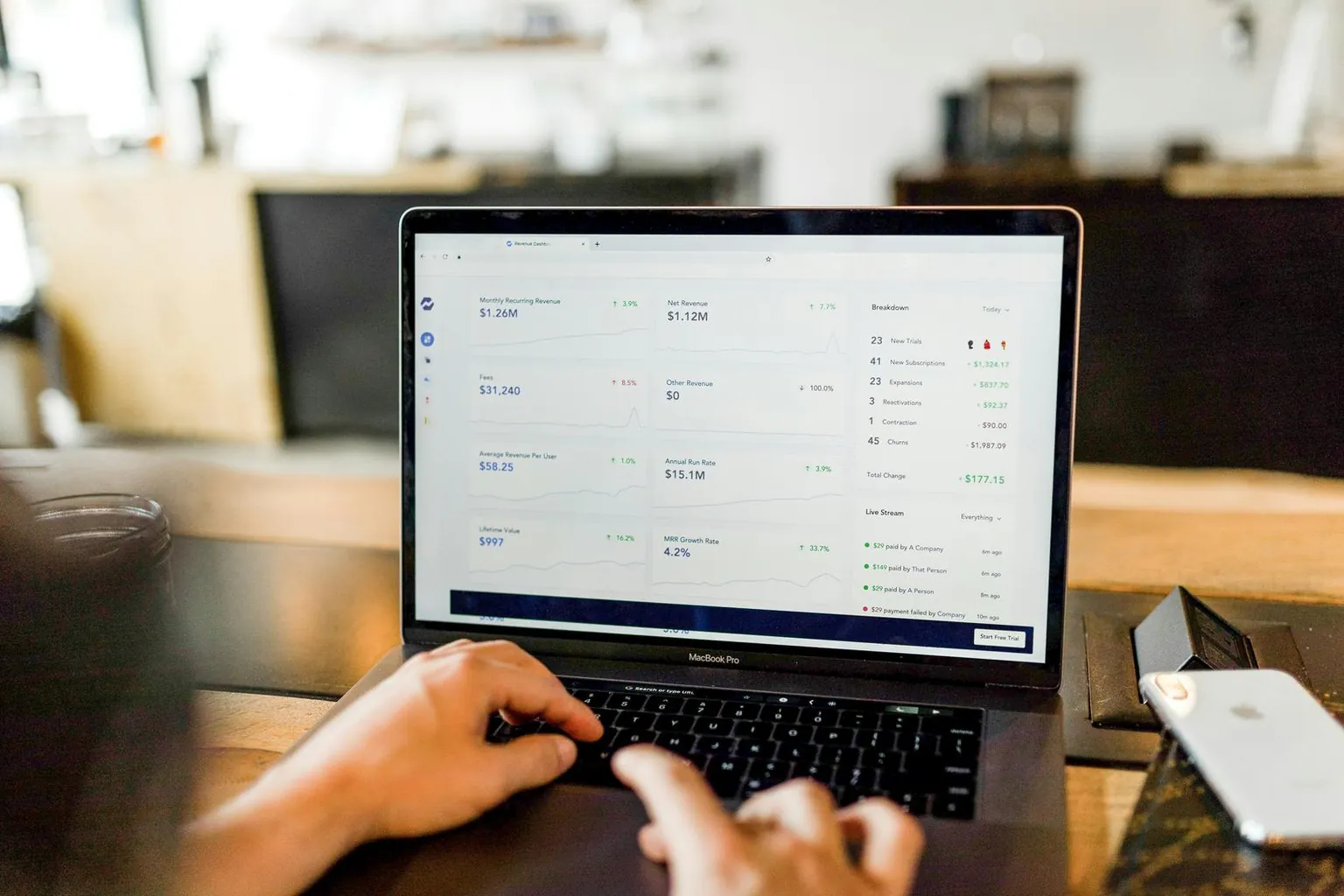
AI for Sage 50 and Sage 200: what works with your edition today
Sage 50 Accounts in the UK has Sage Copilot built in. Sage 200, Sage 50 US and Sage 50 Canada don't. On Sage 50 and Sage 200, an MCP server such as Insights AI lets ChatGPT or Claude answer questions from your accounts.
Read more →
Google Universal Cart: what it means for UK Sage sellers
Google's Universal Cart lets shoppers fill one cart from many shops while they search. It's US only for now, but the groundwork for UK sellers starts in Sage: clean product data, live stock, and orders that flow back into your accounts.
Read more →
How to connect Sage to ChatGPT, Claude, Copilot or Gemini
ChatGPT and Claude can't read Sage on their own. Here is how to connect Sage 50 or Sage 200 to your AI assistant, which plans support it, and what to ask first.
Read more →My Mobile Workers integration FAQs
Does My Mobile Workers work with Sage?
Is there a My Mobile Workers API?
Can job invoices go to Xero or QuickBooks?
Can I see in My Mobile Workers whether a job has been invoiced?
Can customers come from our CRM instead of the accounts?
How often does the integration run?
What is the first step for a My Mobile Workers integration?
See what Zynk can automate for your My Mobile Workers setup
Book a 20-minute call. We'll review your systems, flag the quick wins and outline a practical route to going live.
Book a callSee pricing →